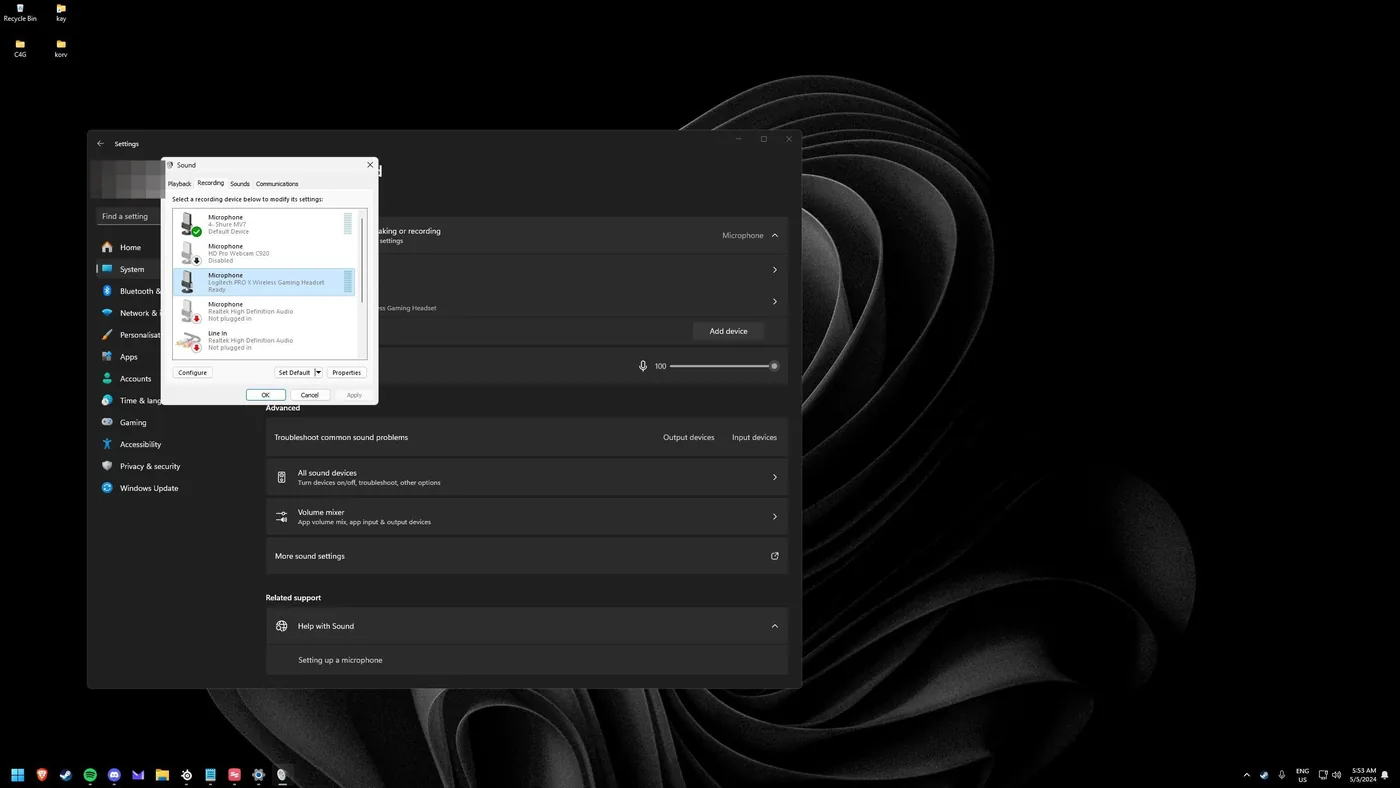
Setting Your Microphone as the Default Communication Device
Setting your mic as the default communication device makes sure apps like Discord, Teams and games all pick up the right input for voice, separate from your general sound default.
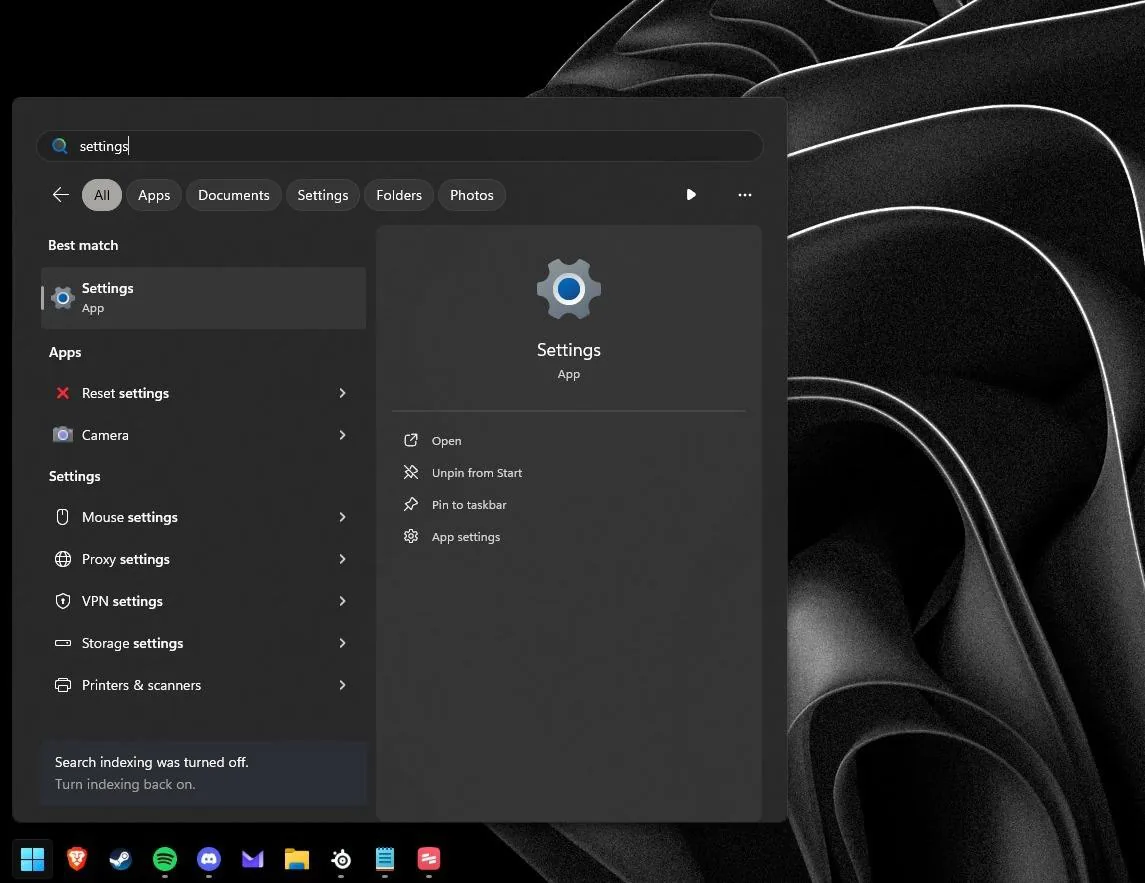
Open Settings
Open Windows Settings (Windows 10 or 11).
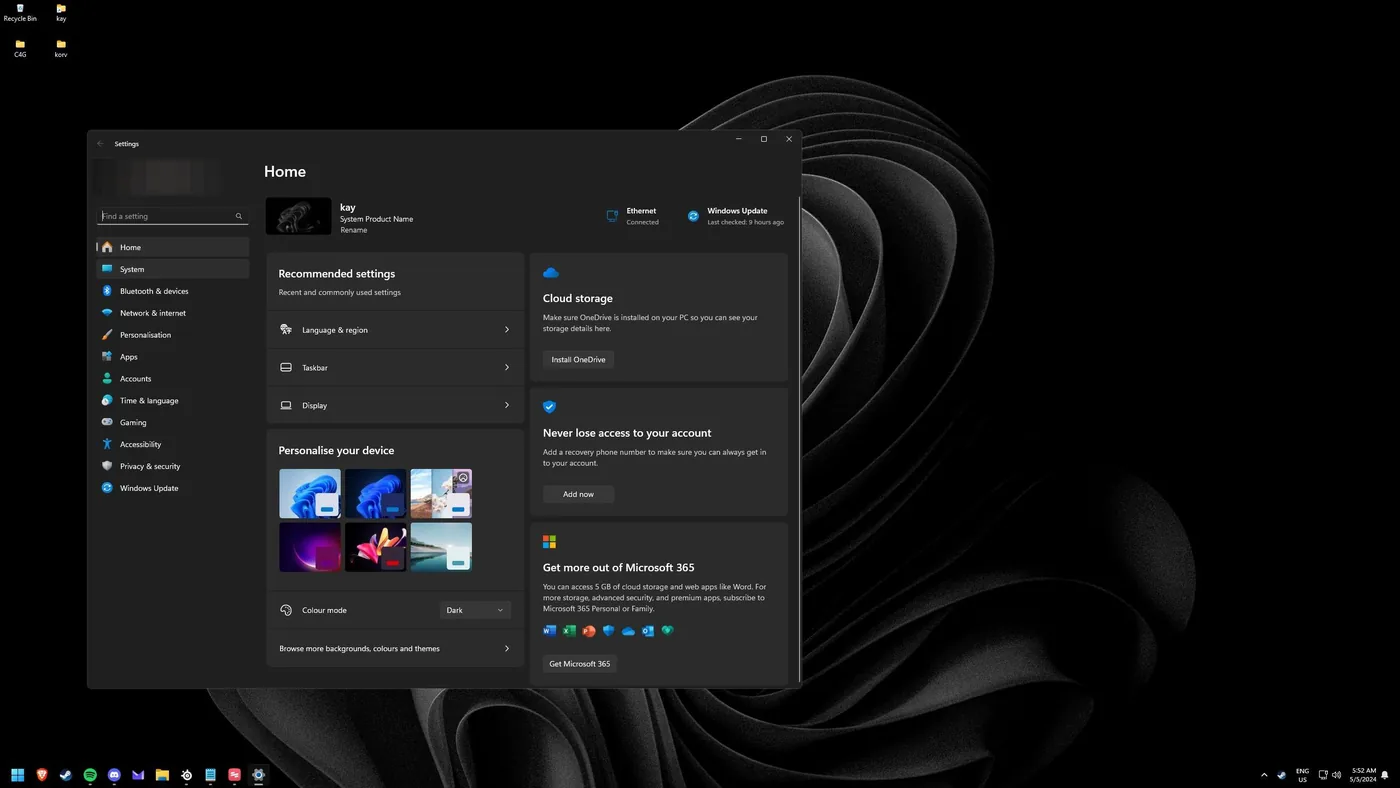
Go to System
Click "System".
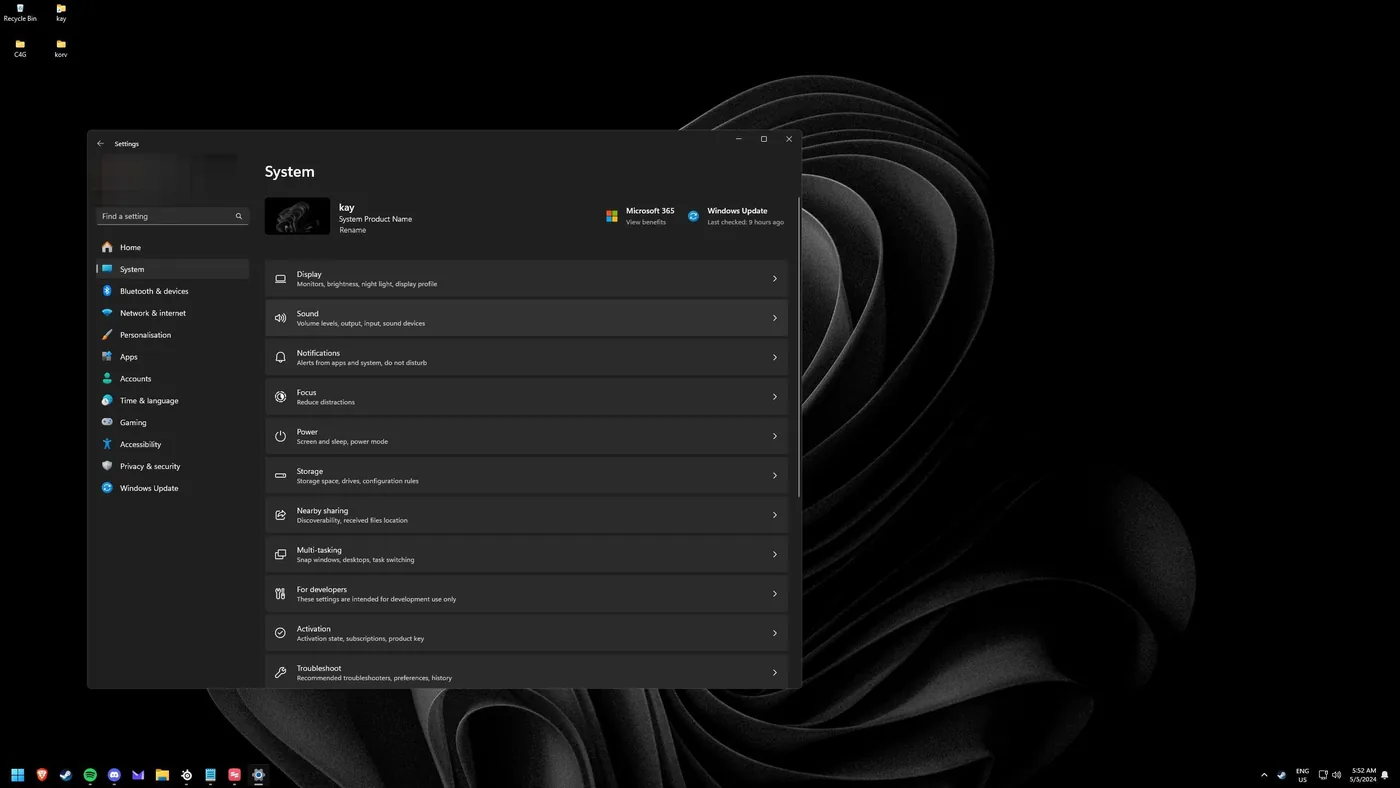
Open Sound
Click "Sound".
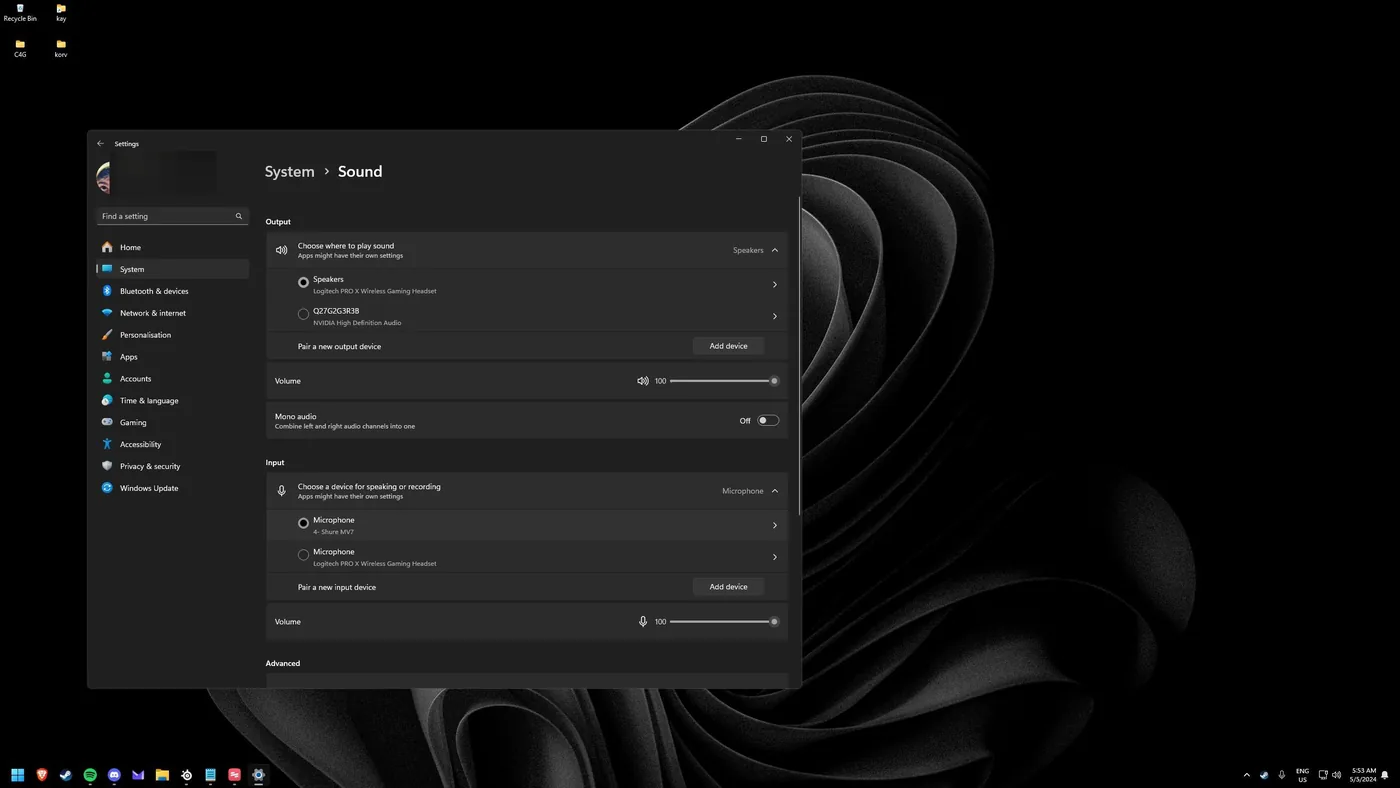
Pick your microphone
Under Input, select the microphone you want to use.
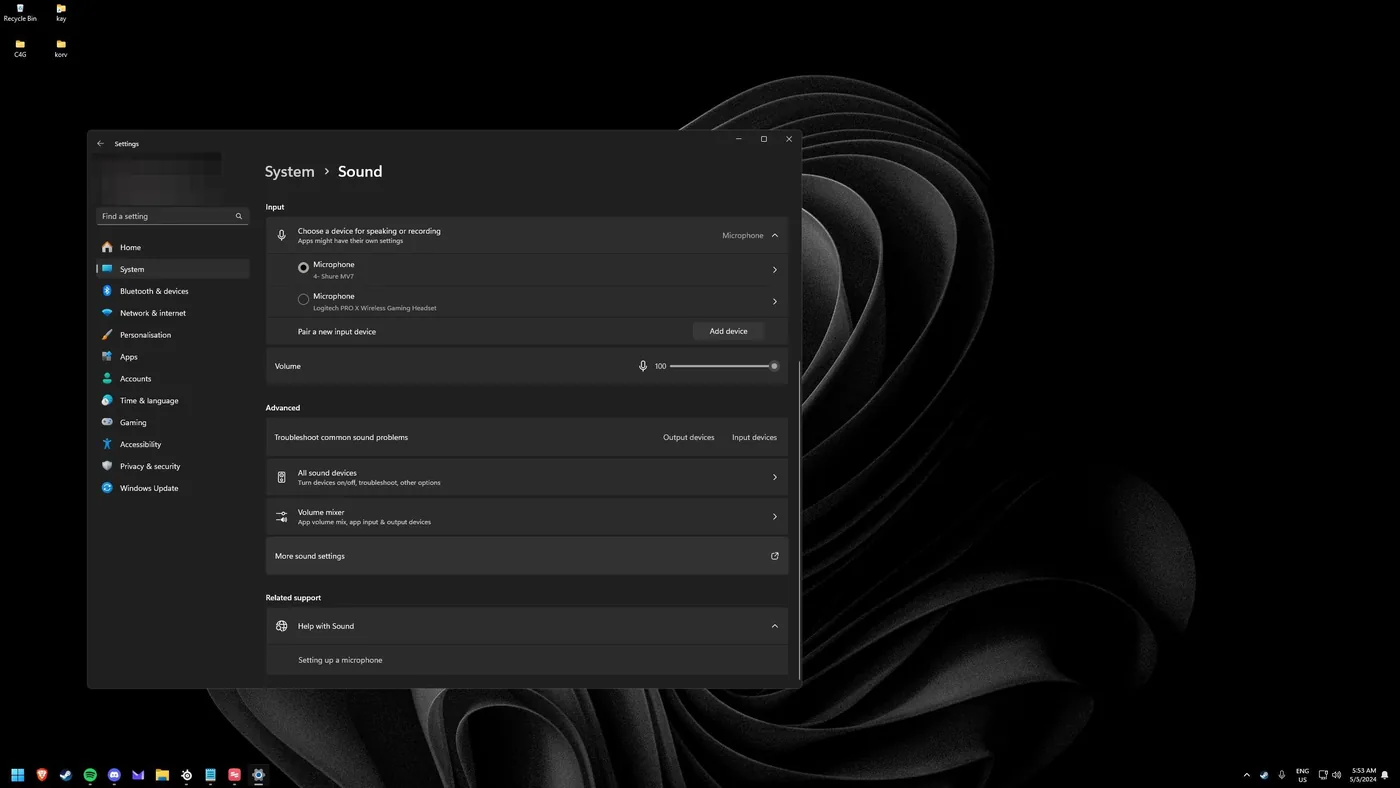
Open more sound settings
Scroll down and click "More sound settings" to open the classic Control Panel sound window.
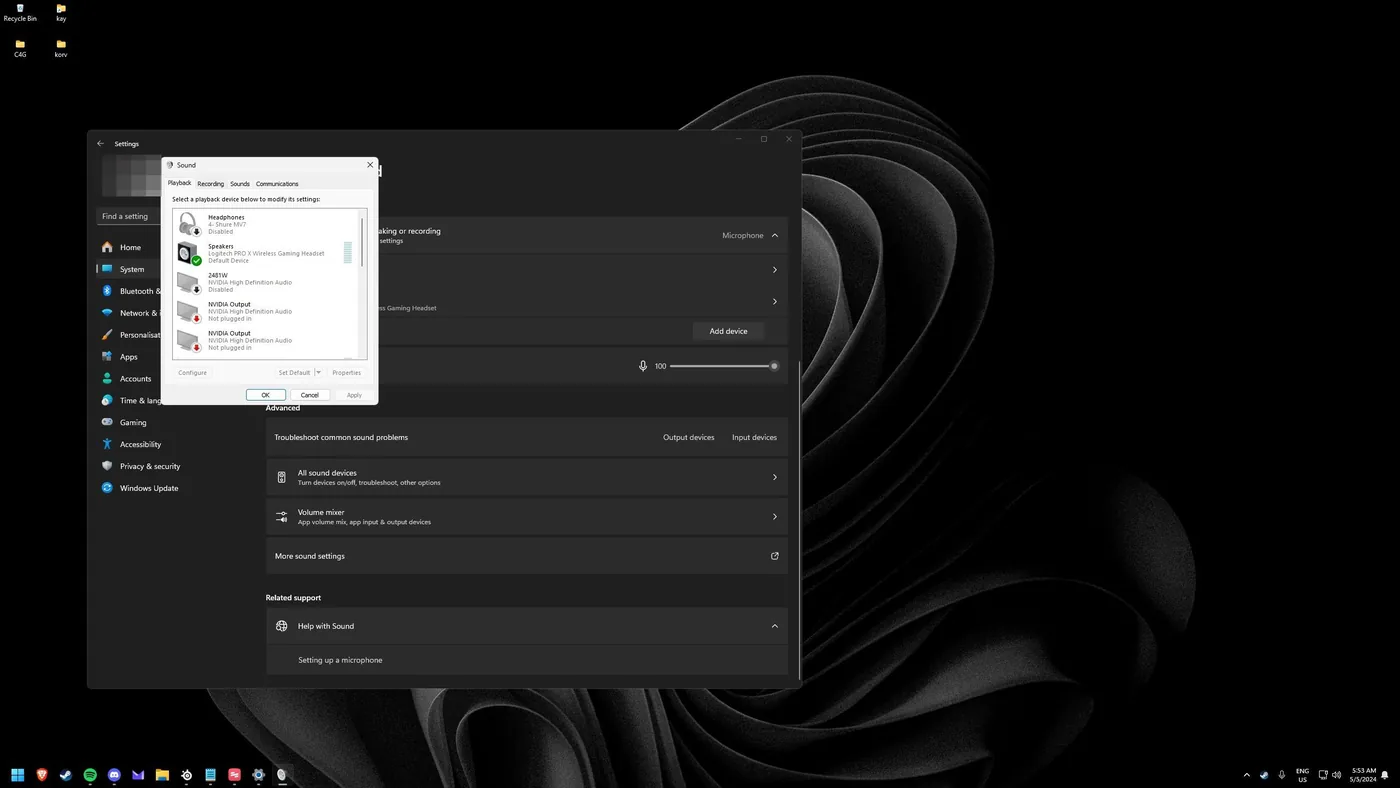
Go to the Recording tab
Switch to the "Recording" tab to see all of your input devices.
Set as default communication device
Select your microphone, right-click it, and choose "Set as Default Communication Device".