Setting Your Correct Monitor Refresh Rate
This ensures your monitors run at their maximum capability for smoother, more fluid motion. Particularly worthwhile for gamers and anyone on a high-refresh display, where Windows often defaults to a lower rate than your panel supports.
Tip: If your highest rate isn't listed, check your cable (use DisplayPort or HDMI 2.1 for high refresh rates) and make sure your graphics drivers are up to date.
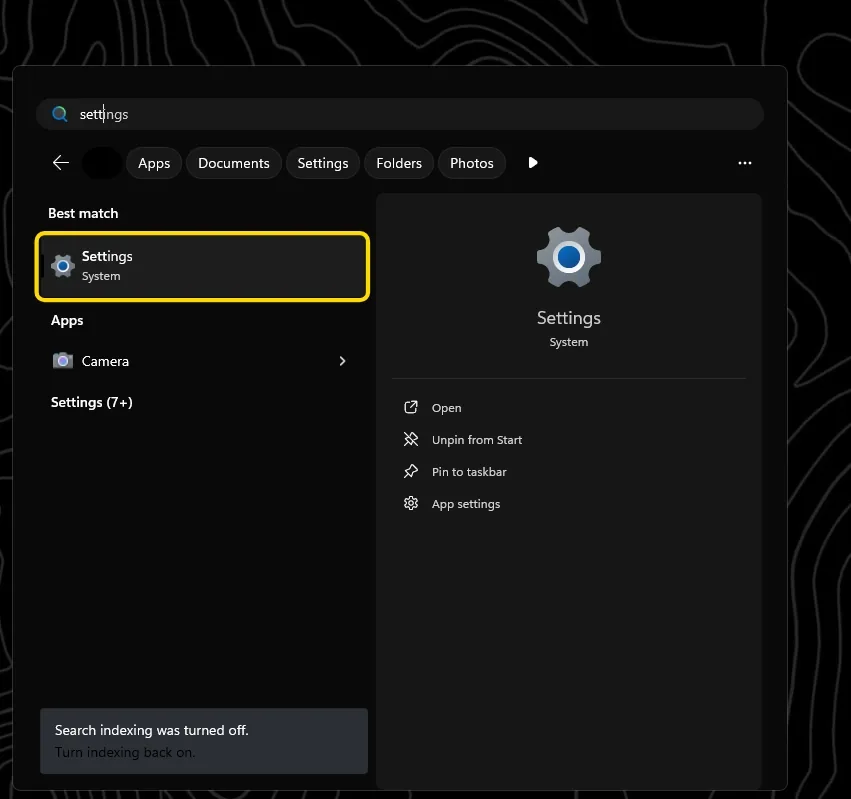
Open Settings
Start by opening your Start menu and typing "Settings".
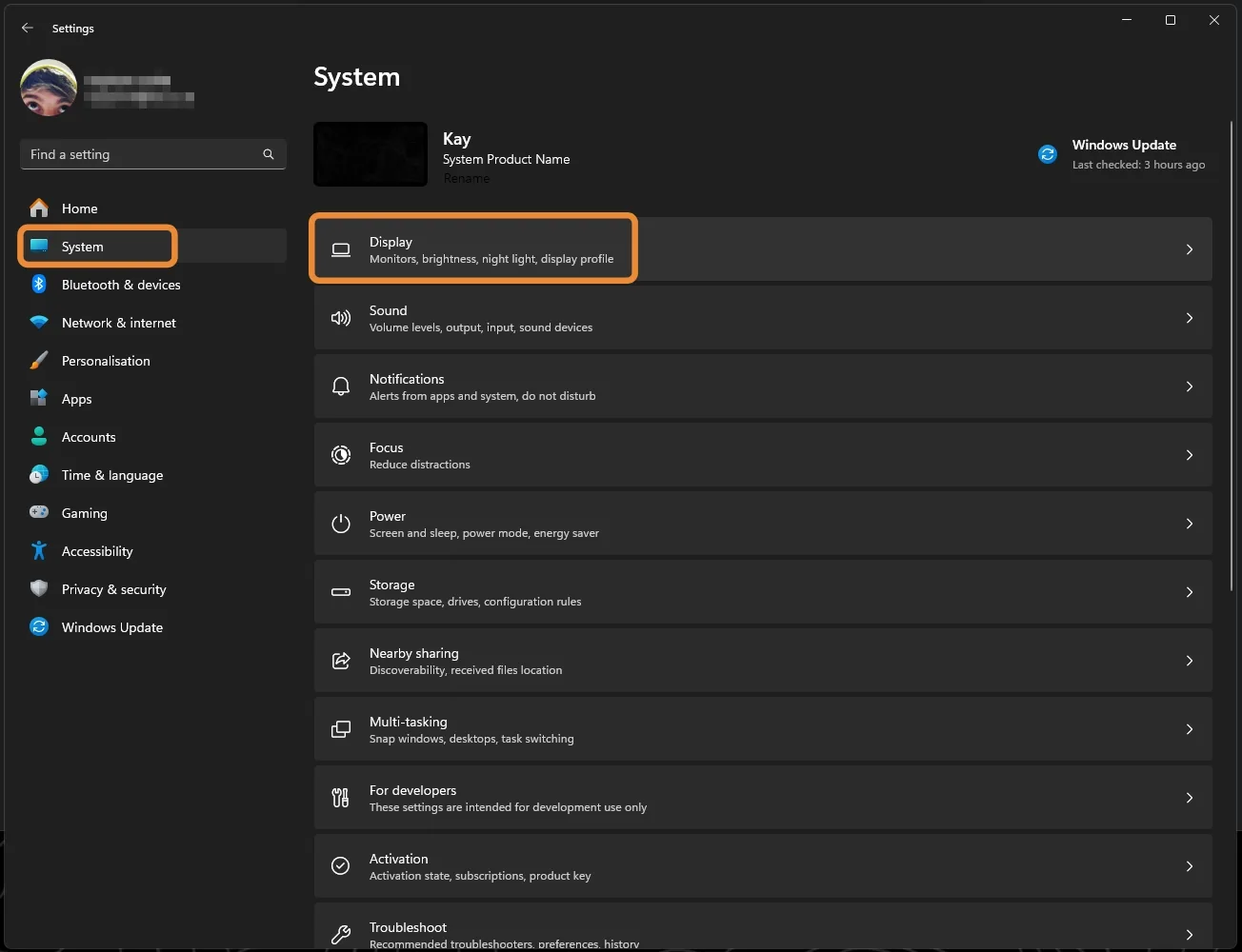
Go to System then Display
In Settings, select "System", then "Display".
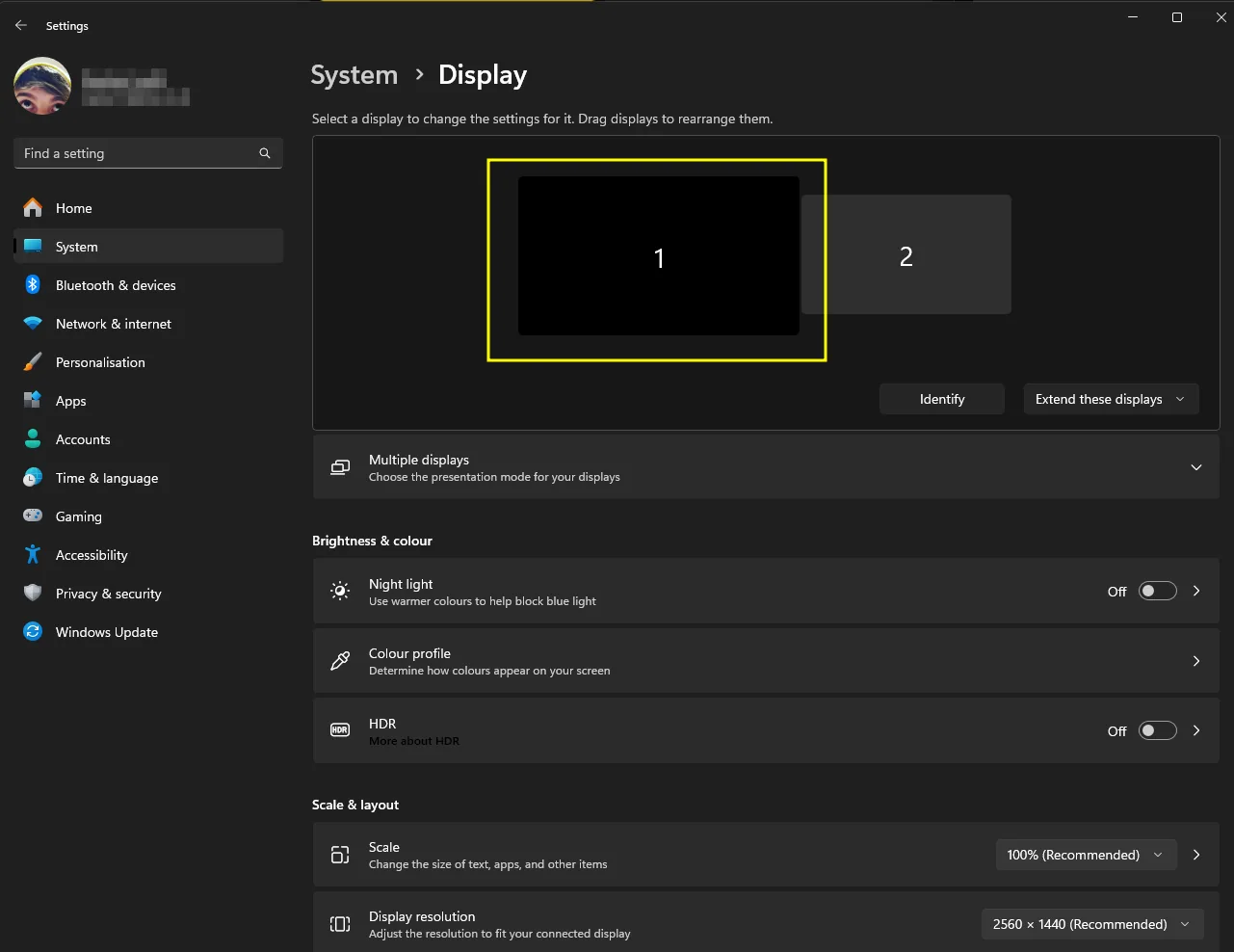
Select the right monitor
In the Display tab, make sure you select the correct monitor. If you have multiple, repeat this for each one.
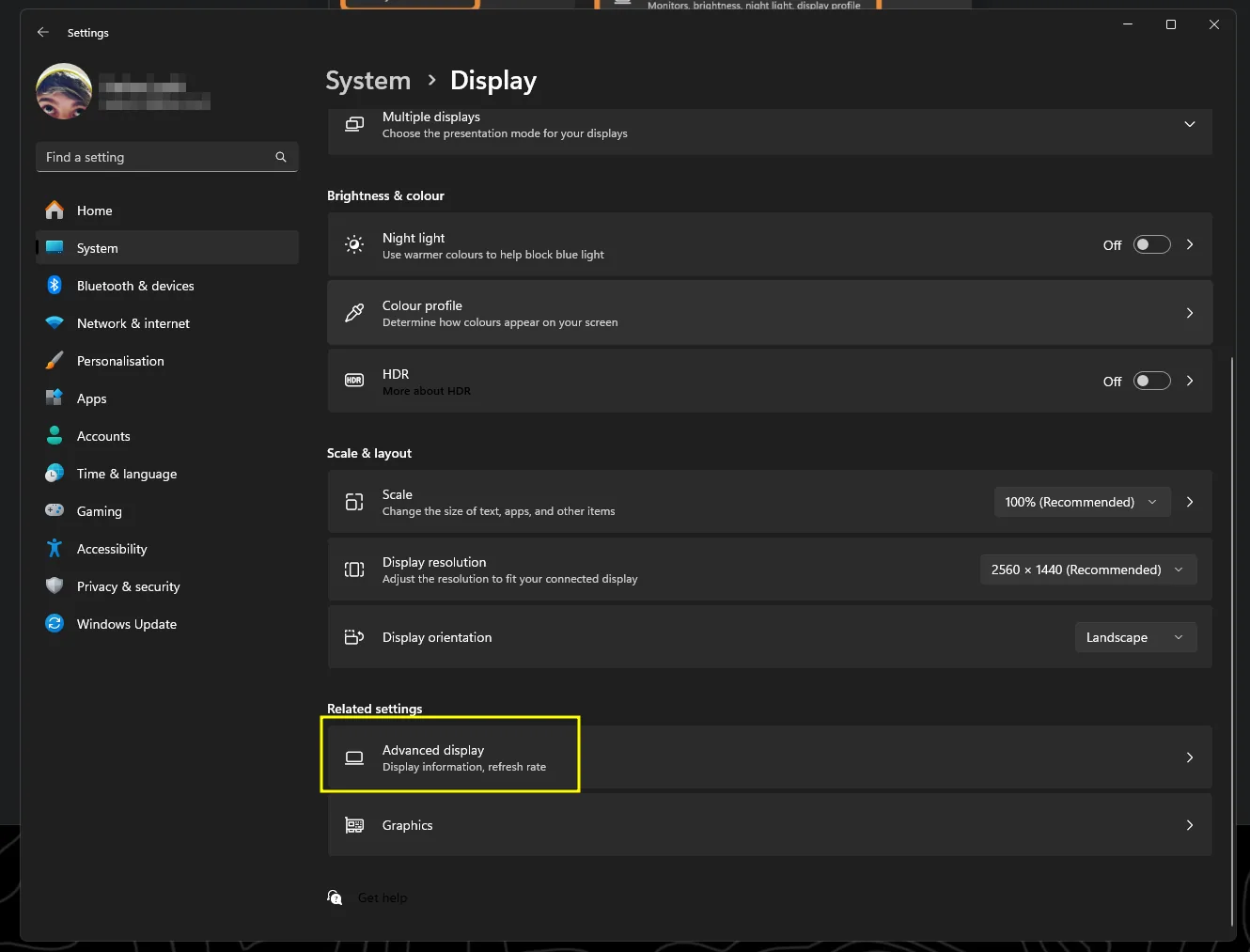
Open Advanced Display
Scroll down and select "Advanced Display".
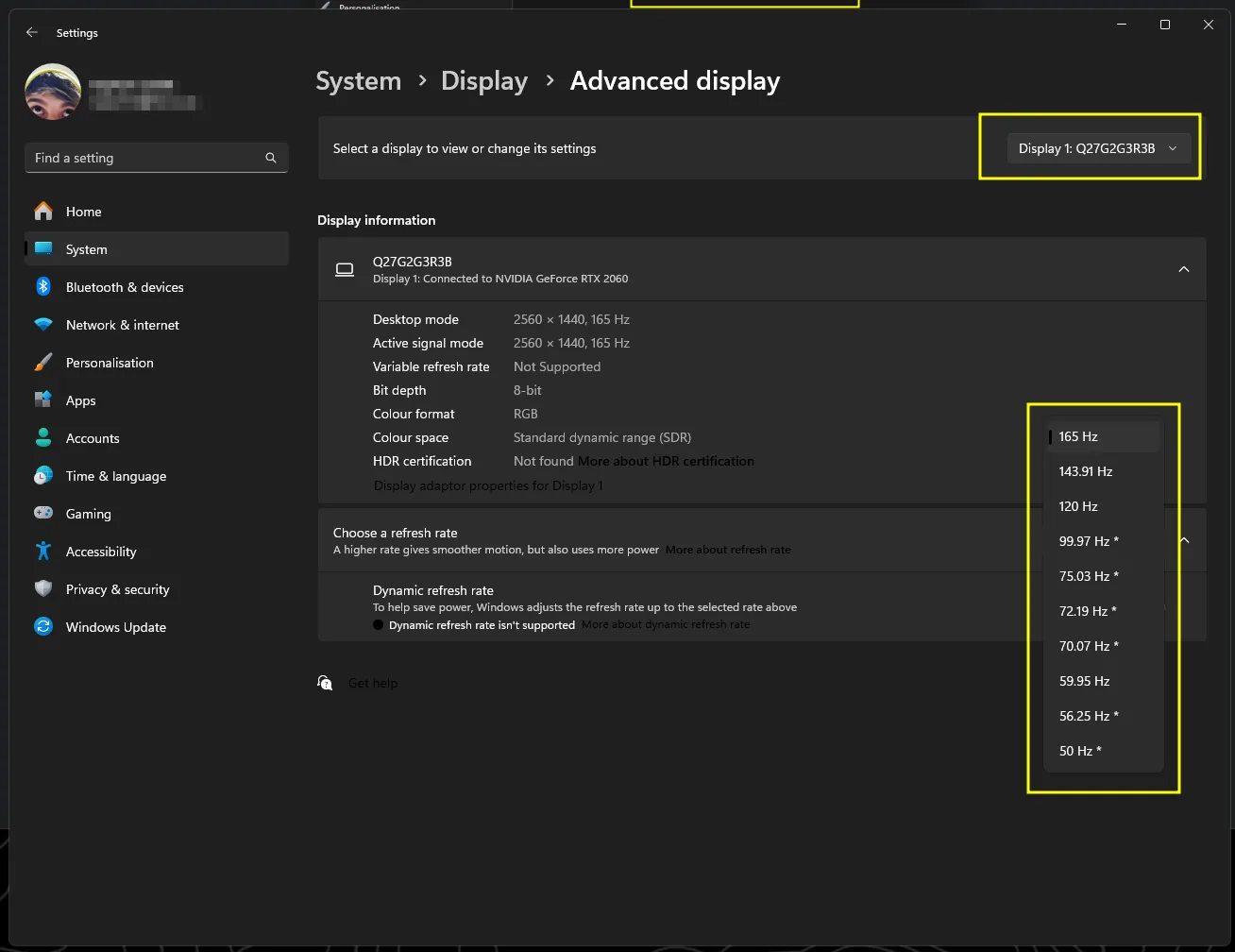
Set the refresh rate
In the Advanced Display section you can select each display and set the refresh rate it runs at (higher is better). Do this for every monitor.
Done
You've now set the correct refresh rate for your monitor(s).