Using NVCleanstall to Install and Debloat Your Drivers
NVCleanstall lets you install Nvidia drivers without the bloat (telemetry and extra components), and can pull the best driver for your GPU. A clean, lean driver install can give a meaningful performance boost.
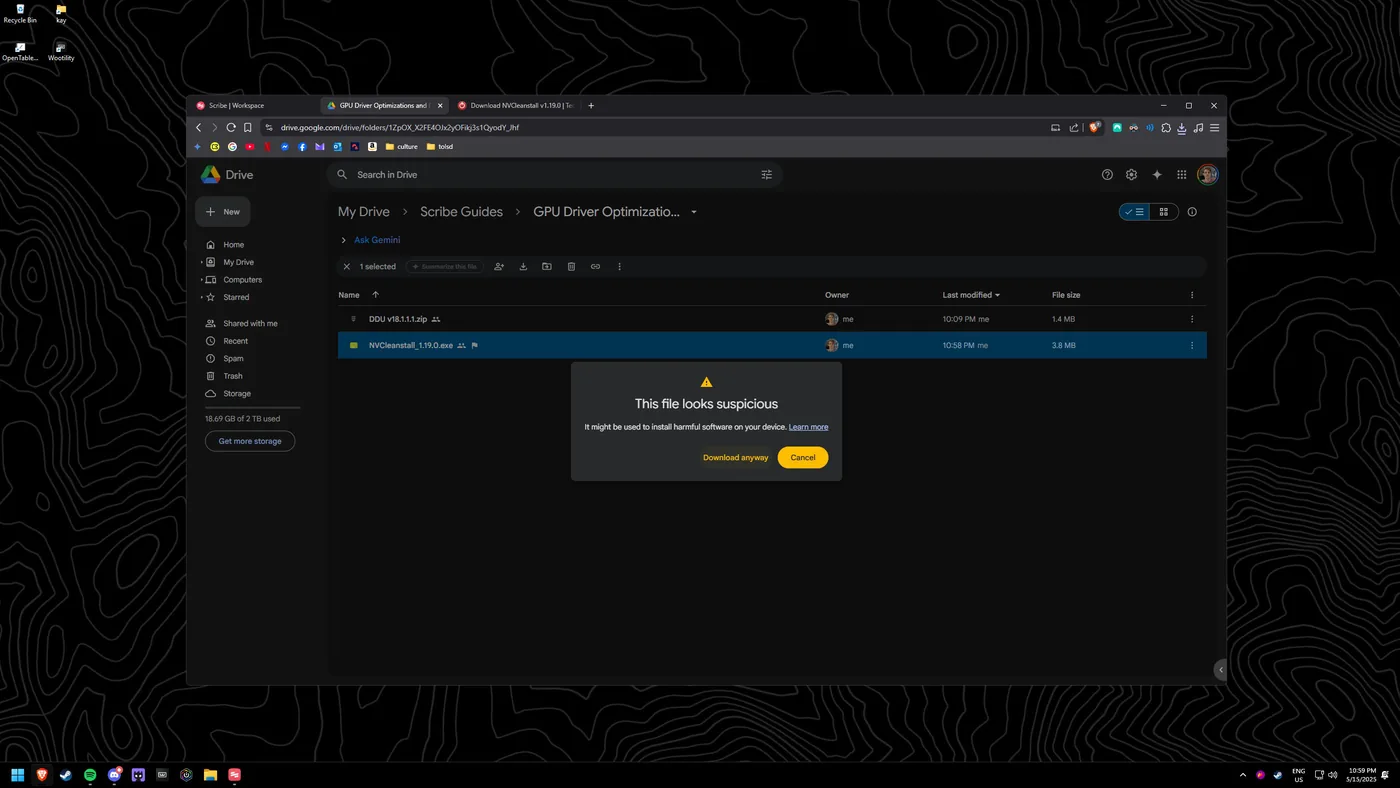
Warning: NVCleanstall's .exe can trigger a false-positive antivirus flag when downloaded from my Drive. It's safe; you can also grab the latest version from the official NVCleanstall homepage.
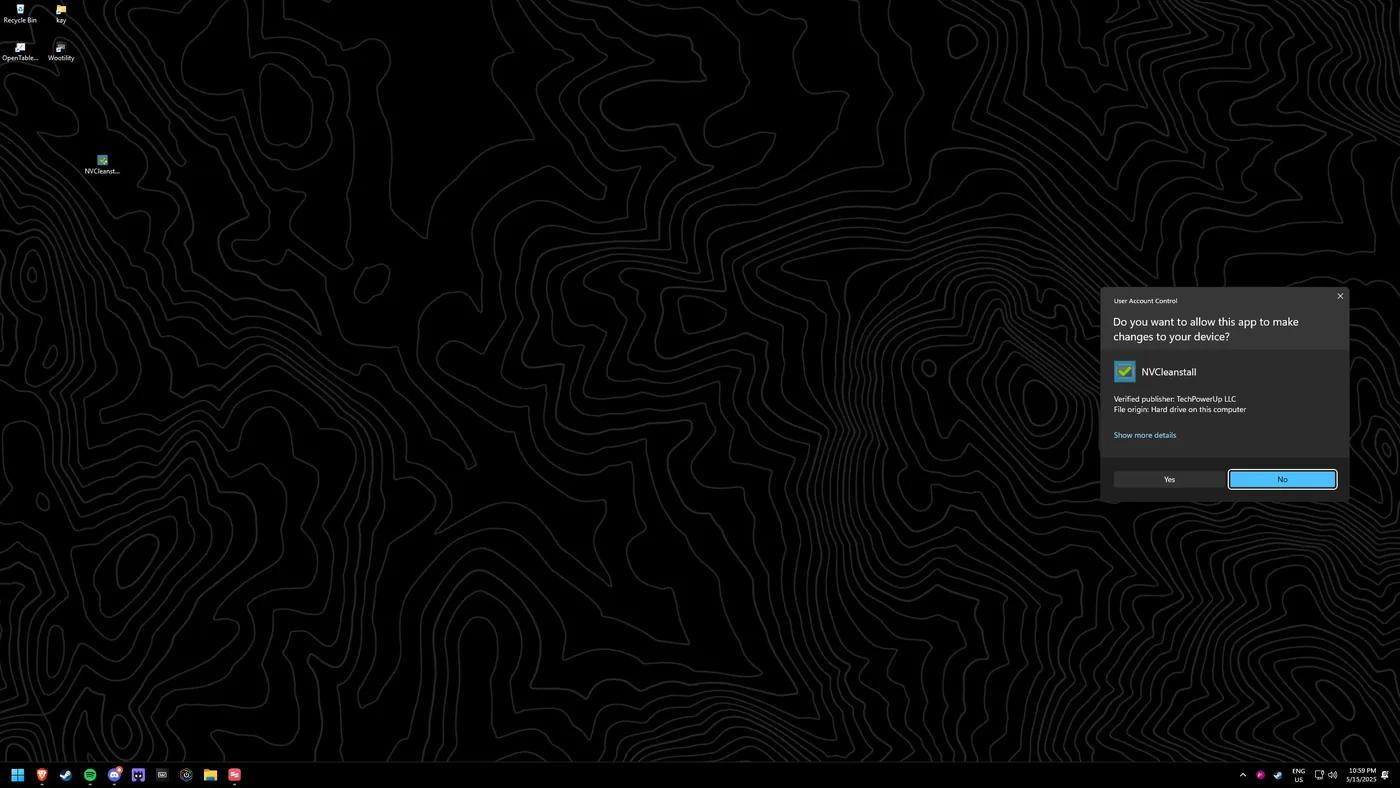
Download NVCleanstall
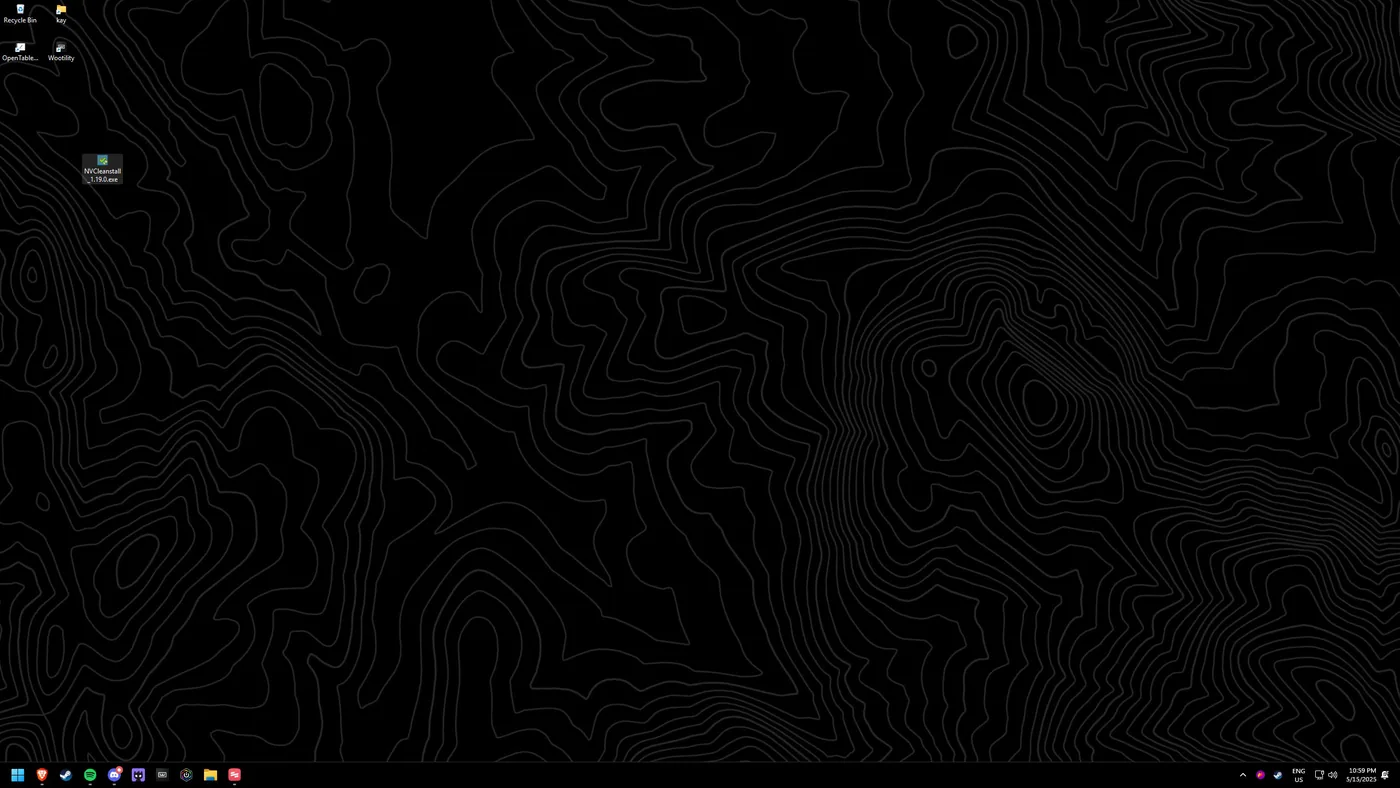
Get it from my GPU driver pack on my Drive (or the NVCleanstall homepage) and move it to your desktop.
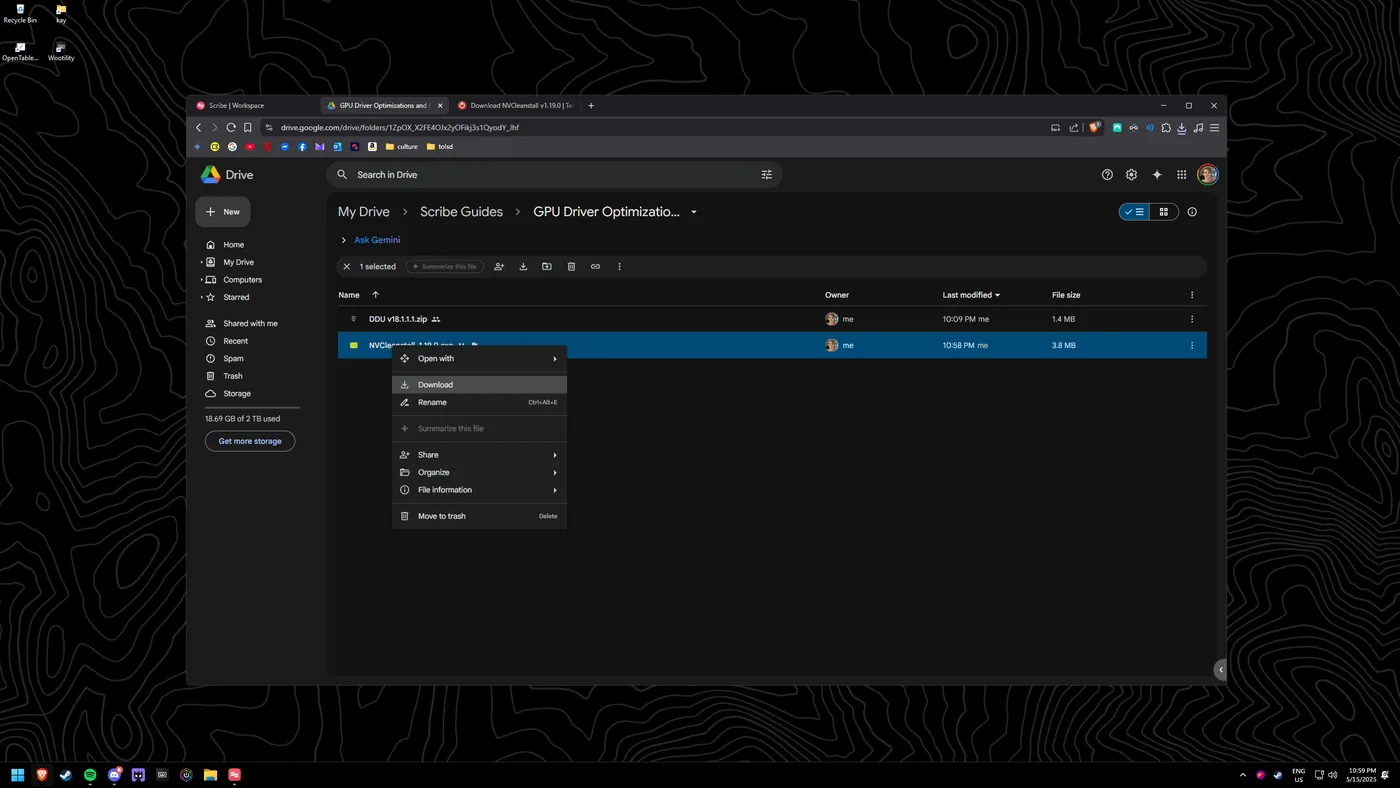
Bypass the false positive
If downloading from Drive, select "Download anyway" and ignore the false-positive flag.
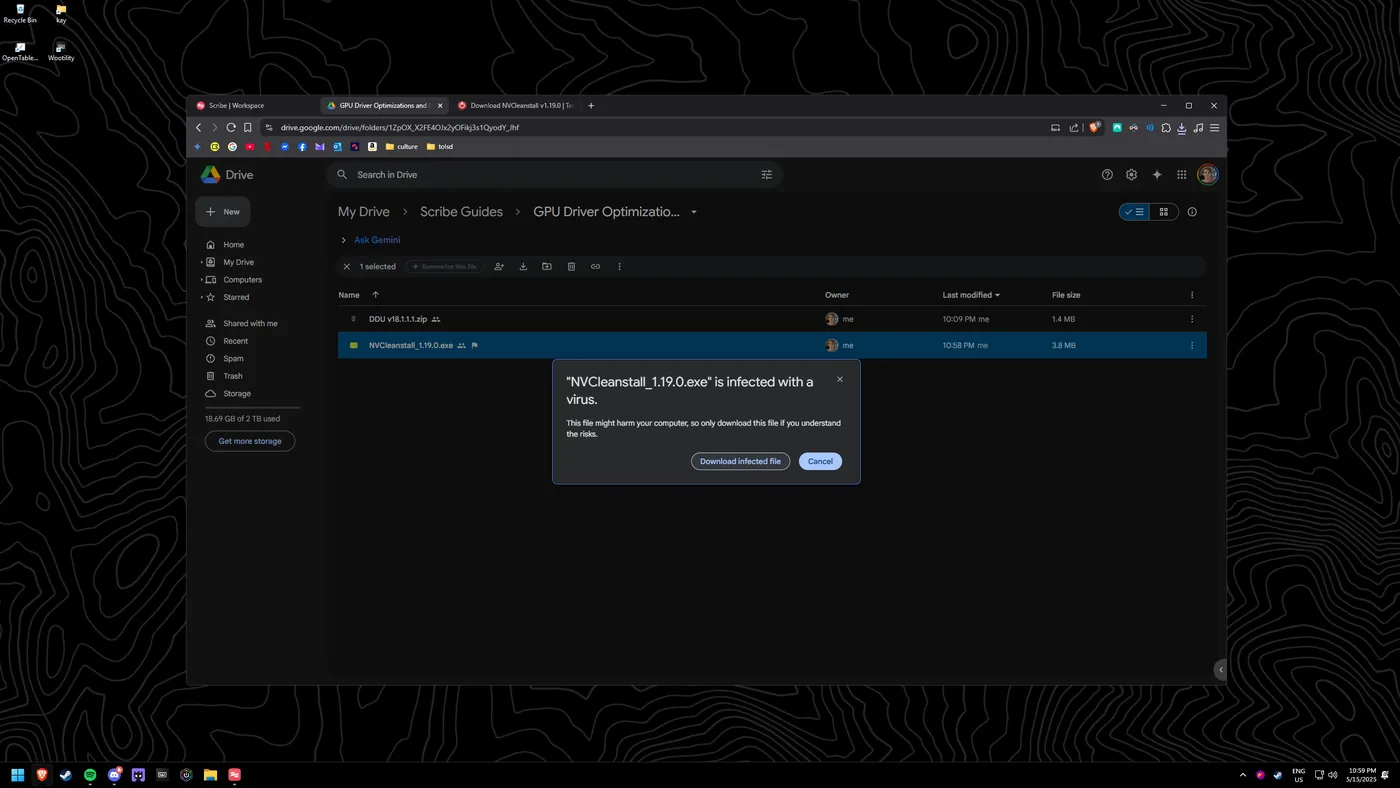
Run as administrator
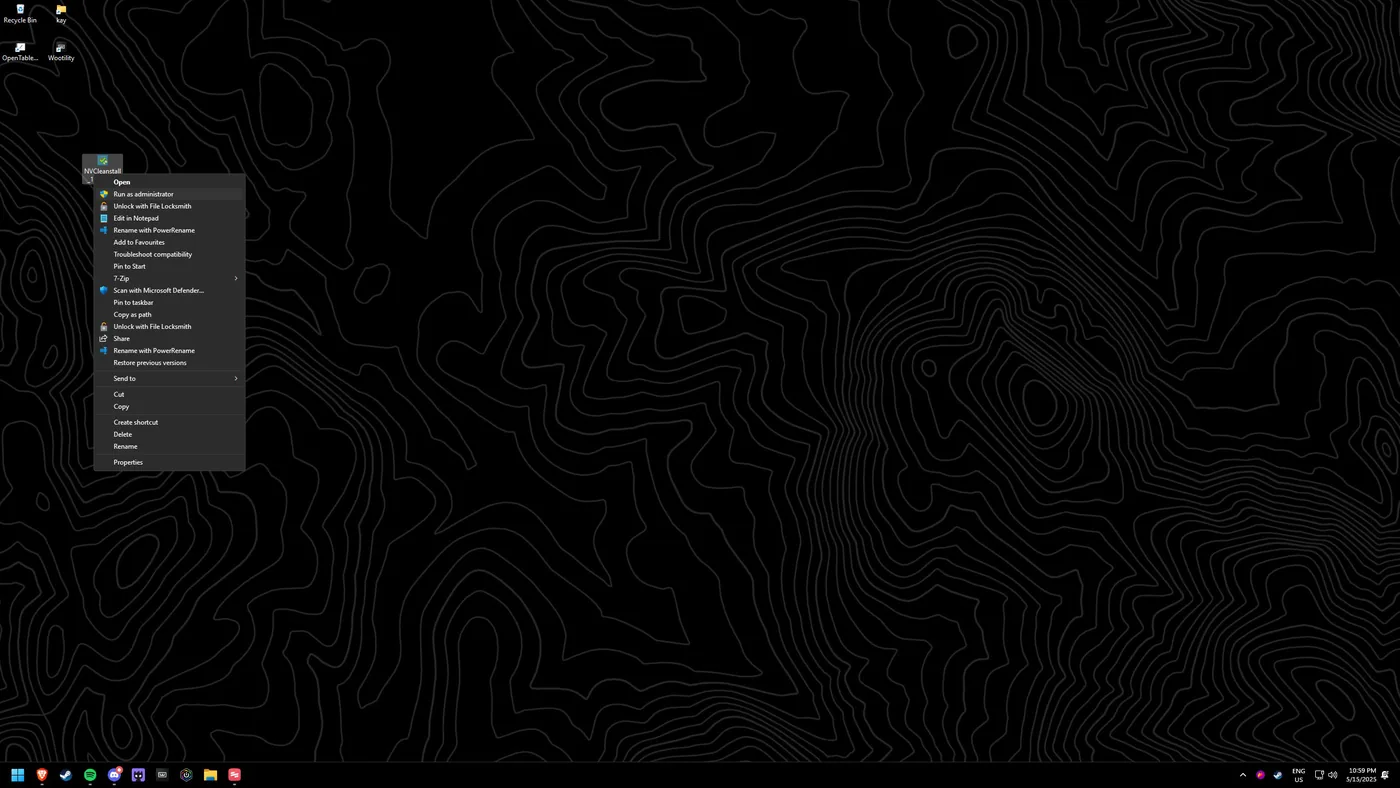
Right-click "NVCleanstall_x.xx.exe" and choose "Run as administrator".
Start the wizard
Click through to begin selecting your driver.
Choose and trim components
Pick the driver you want, then deselect telemetry and any components you don't need (this is the debloat step).
Install and reboot
Complete the installation and reboot. You're now on a clean, debloated driver.