Arma 3 Performance Tips
Arma 3 is famously CPU-bound, so the right tweaks make a real difference. This covers Bohemia's profiling build, a faster memory allocator, recommended launcher parameters, an additional parameters file you can grab from my Drive, and CPU tuning with Process Lasso.
Tip: Credit to Xenyx for his in-depth, thoroughly researched Arma 3 performance guide on GitHub, which this builds on.
Warning: The profiling build is also a testing ground for upcoming patches, so you may occasionally hit a bug. If anything misbehaves, switch back to the stable branch using the same steps.
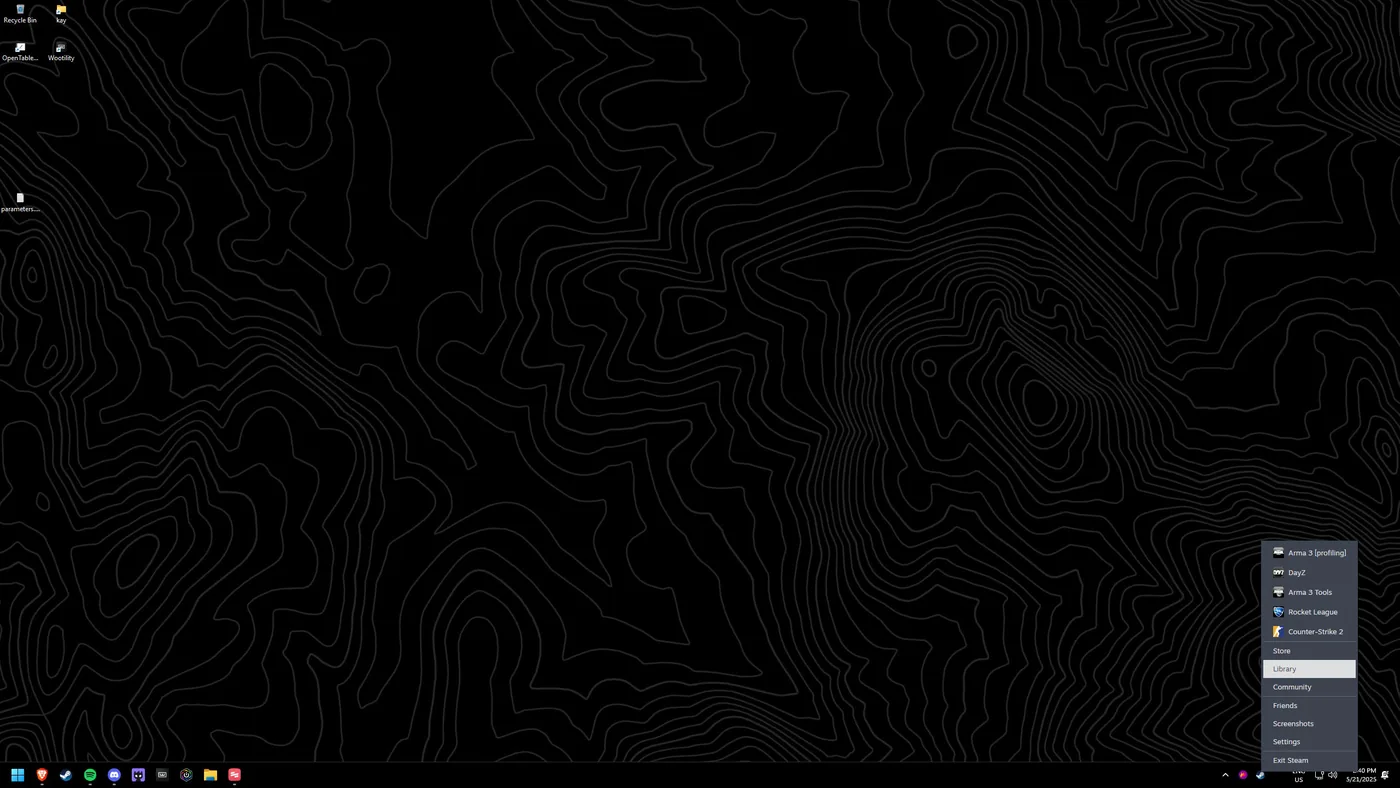
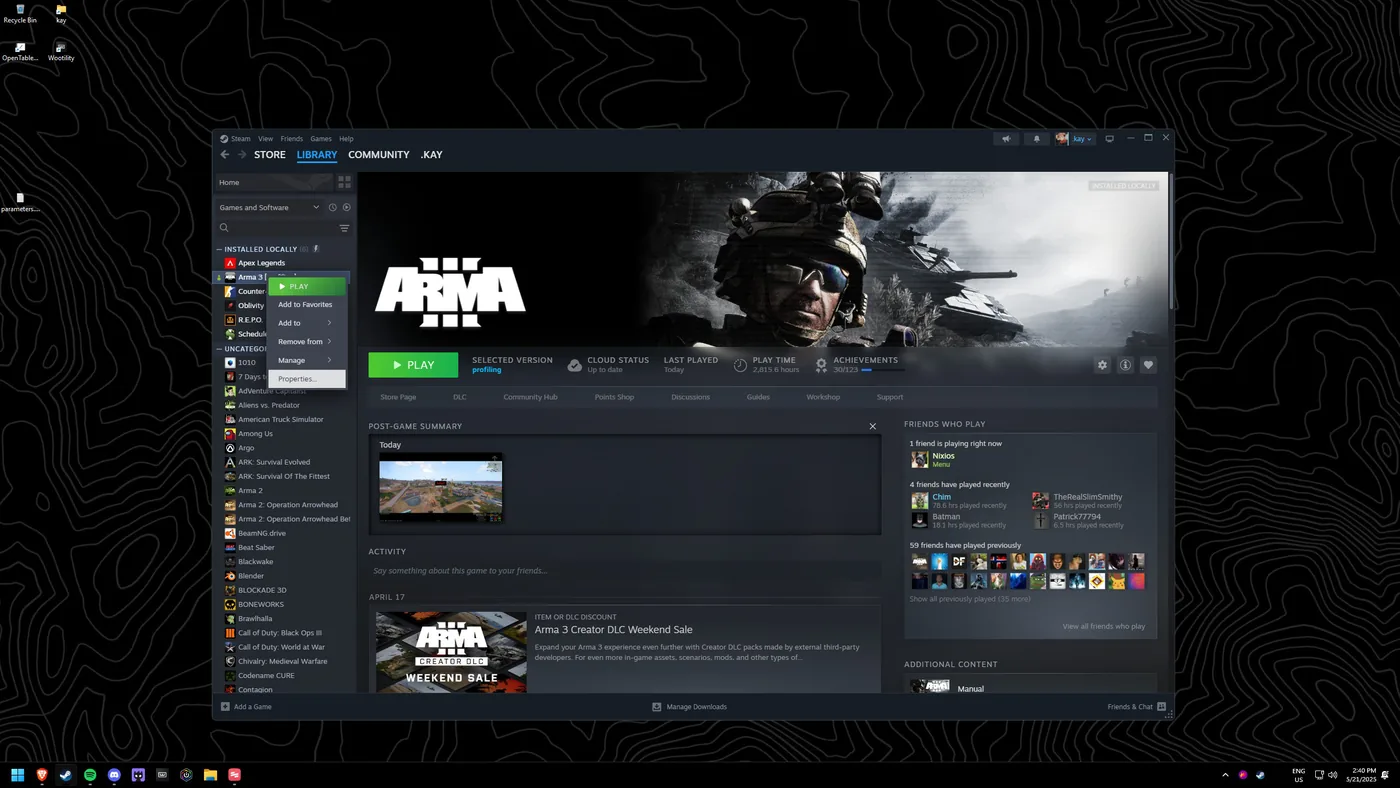
Open Arma 3 properties in Steam
Open Steam, go to your Library, right-click your Arma 3 installation and select "Properties".
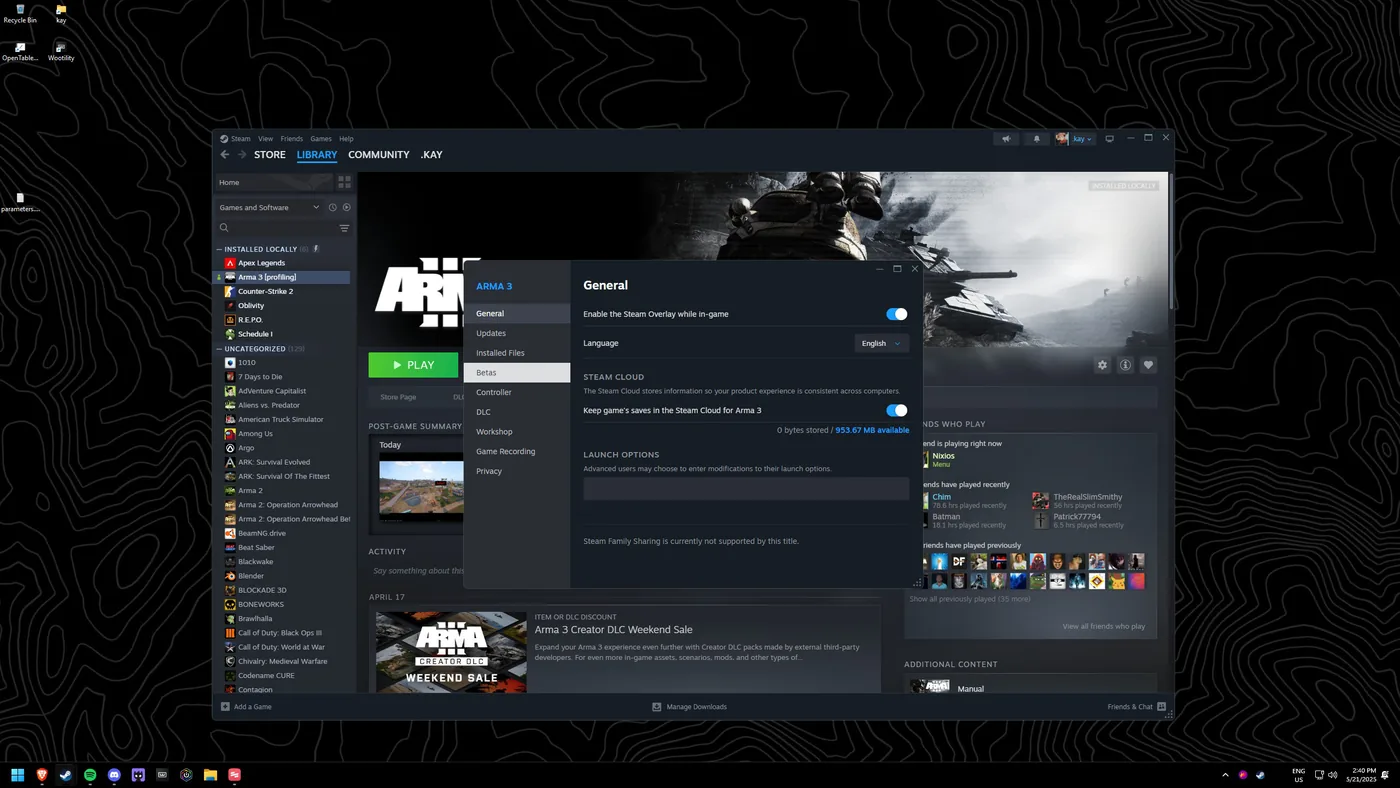
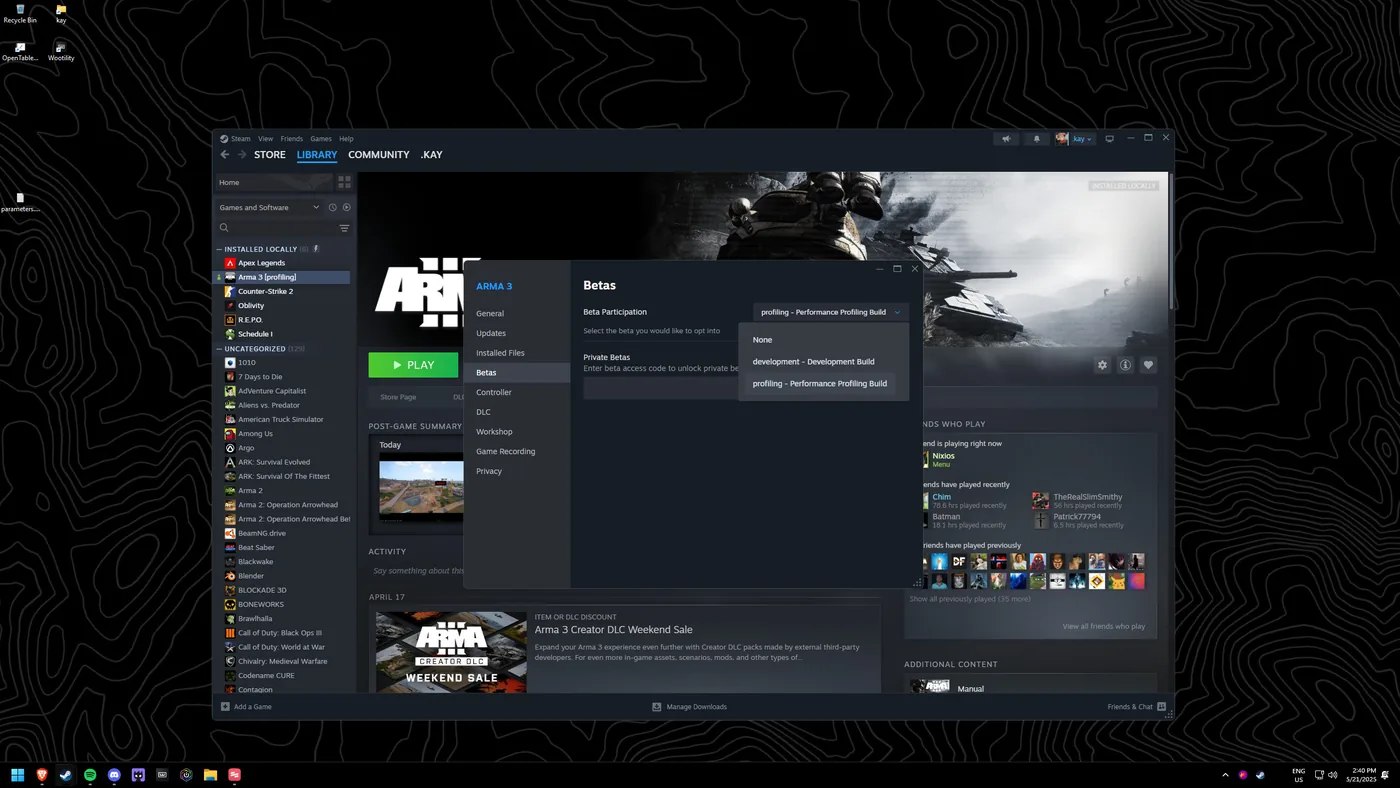
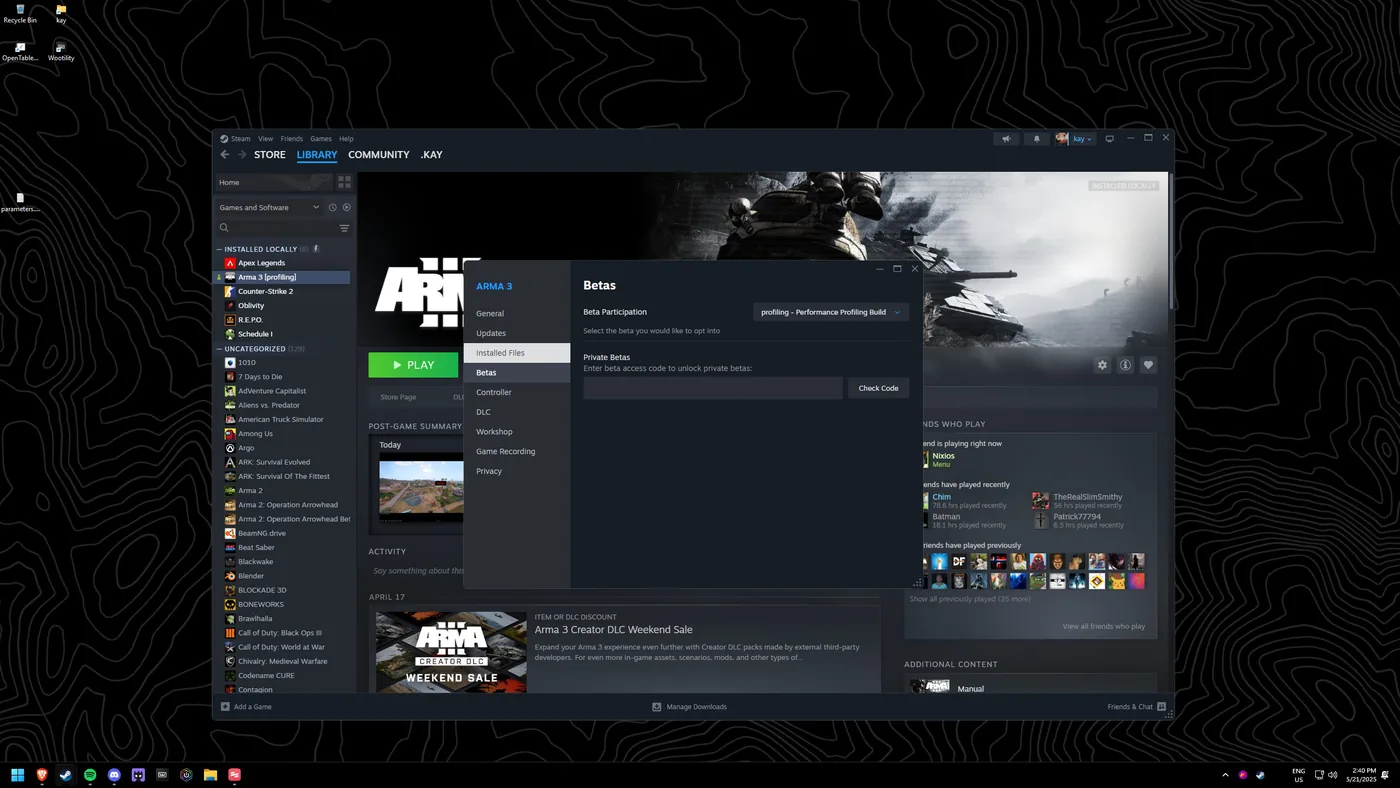
Switch to the profiling performance build
Go to the "Betas" tab and select "profiling - Performance Profiling Build". Depending on your system this can give a significant FPS boost.
Use a faster memory allocator
In the Arma 3 Launcher, open Parameters and set the Memory Allocator to an optimised option - alternatives such as mimalloc or jemalloc often outperform the default. You can also manage the game's files from its Installed Files in Steam.
Set recommended launcher parameters
In the Launcher's Parameters tab, enable the recommended performance options for your CPU (for example, using all available cores/threads and trimming unnecessary startup overhead).
Add the additional parameters file
Grab my additional parameters file from my Arma 3 performance pack on my Drive, then point the launcher at it for a tuned set of extra parameters.
Optional: tune CPU priority with Process Lasso
Install Process Lasso (by Bitsum) and use it to set Arma 3's CPU affinity and priority so the game gets consistent access to your strongest cores.
Further reading
For deeper explanations of each parameter and allocator, see Xenyx's GitHub performance guide.